
Installation and Payment Guide | Vimu Media Player
This guide will walk you through installing Vimu Media Player using the Vimu Installer and purchasing a License Key via Telegram Stars. Please note that the Installer is designed for Android TV devices only — do not install it on phones or tablets.
Part 1: Download and Transfer Vimu Installer to Your TV
First, download the Vimu Installer APK file from https://vimu.tv/get (the file is called VimuInstaller.apk). Then you need to transfer it to your Android TV device.
There are several ways to do this:
- USB drive — copy the APK to a USB flash drive and plug it into your TV
- Cloud storage — upload the file to Google Drive, Dropbox, etc. and download it on the TV
- File manager with WiFi sharing — use an app like X-plore to transfer files over your local network
- ADB (Android Debug Bridge) — use the
adb installcommand from a computer
Below is an example of how to transfer and install the APK using the X-plore File Manager app.
X-plore: Enable WiFi File Sharing
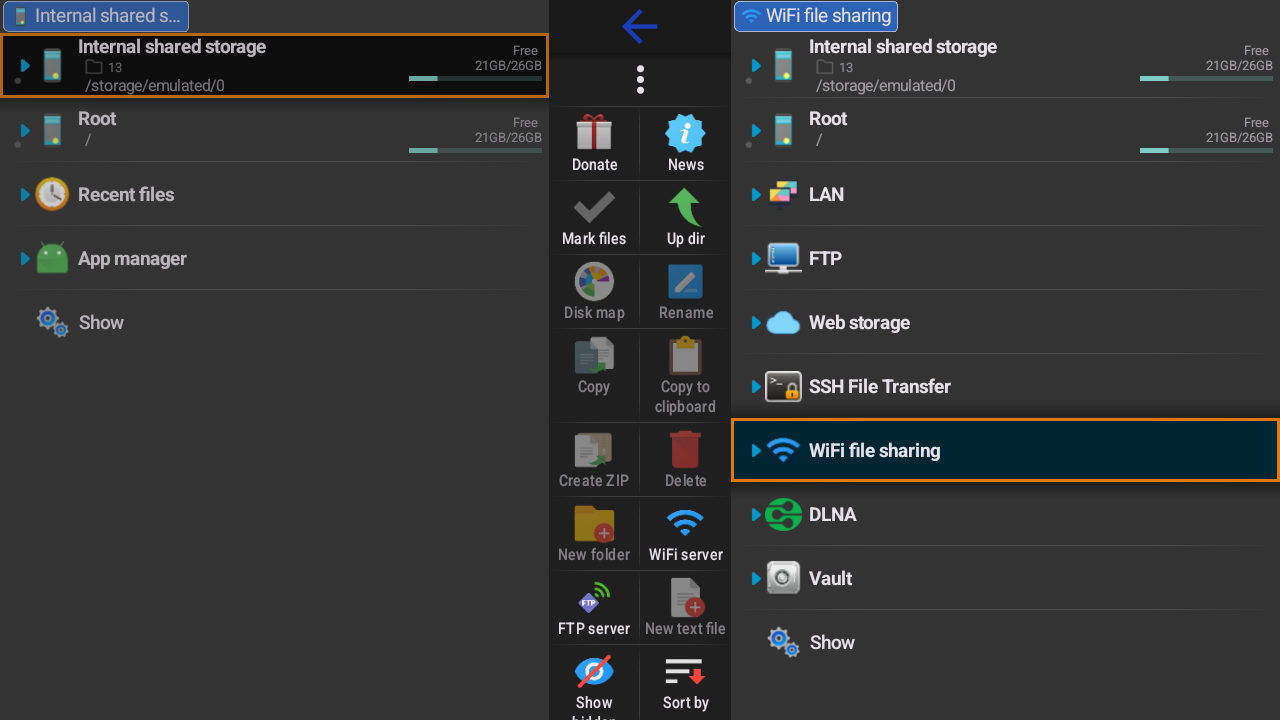
Install X-plore File Manager from Google Play on your TV device. Open it, then go to the toolbar on the right and select "WiFi file sharing".
X-plore: Start the Server
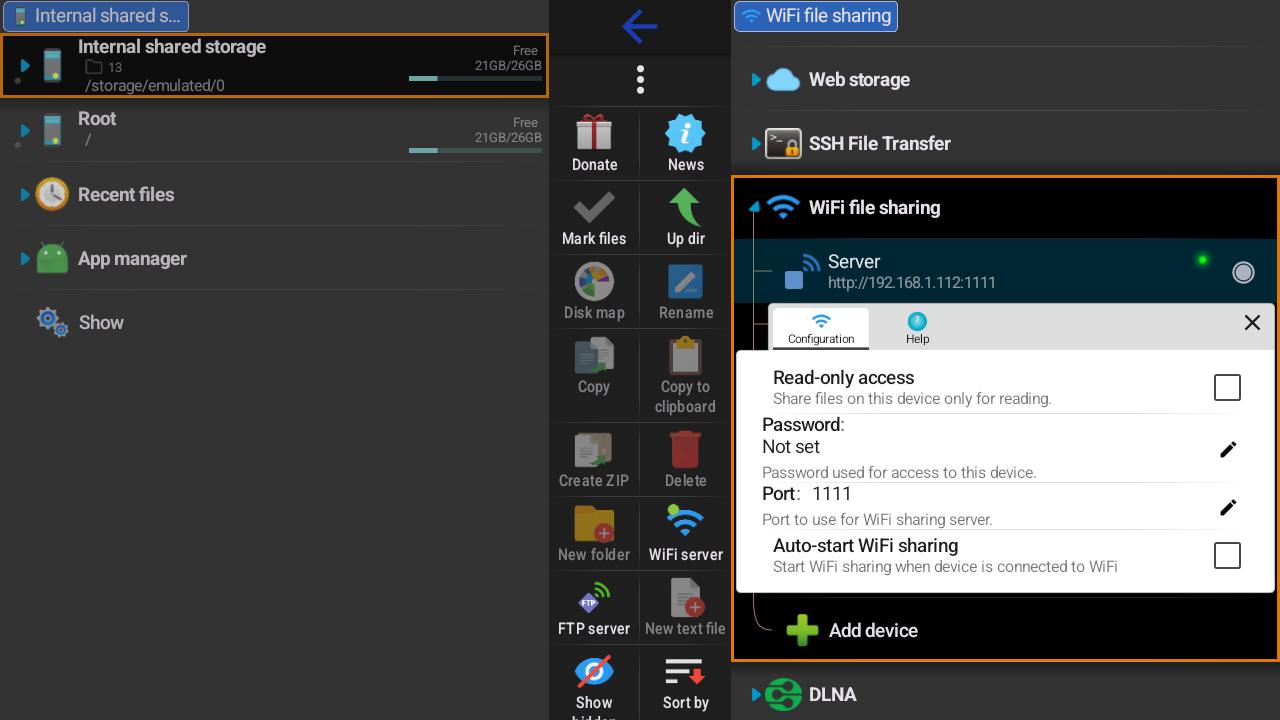
In the WiFi file sharing settings, enable the "Server" toggle. Note the IP address and port shown on the screen (e.g. 192.168.1.112). You will need to open this address in a browser on your computer.
X-plore: Upload the APK from Your Computer
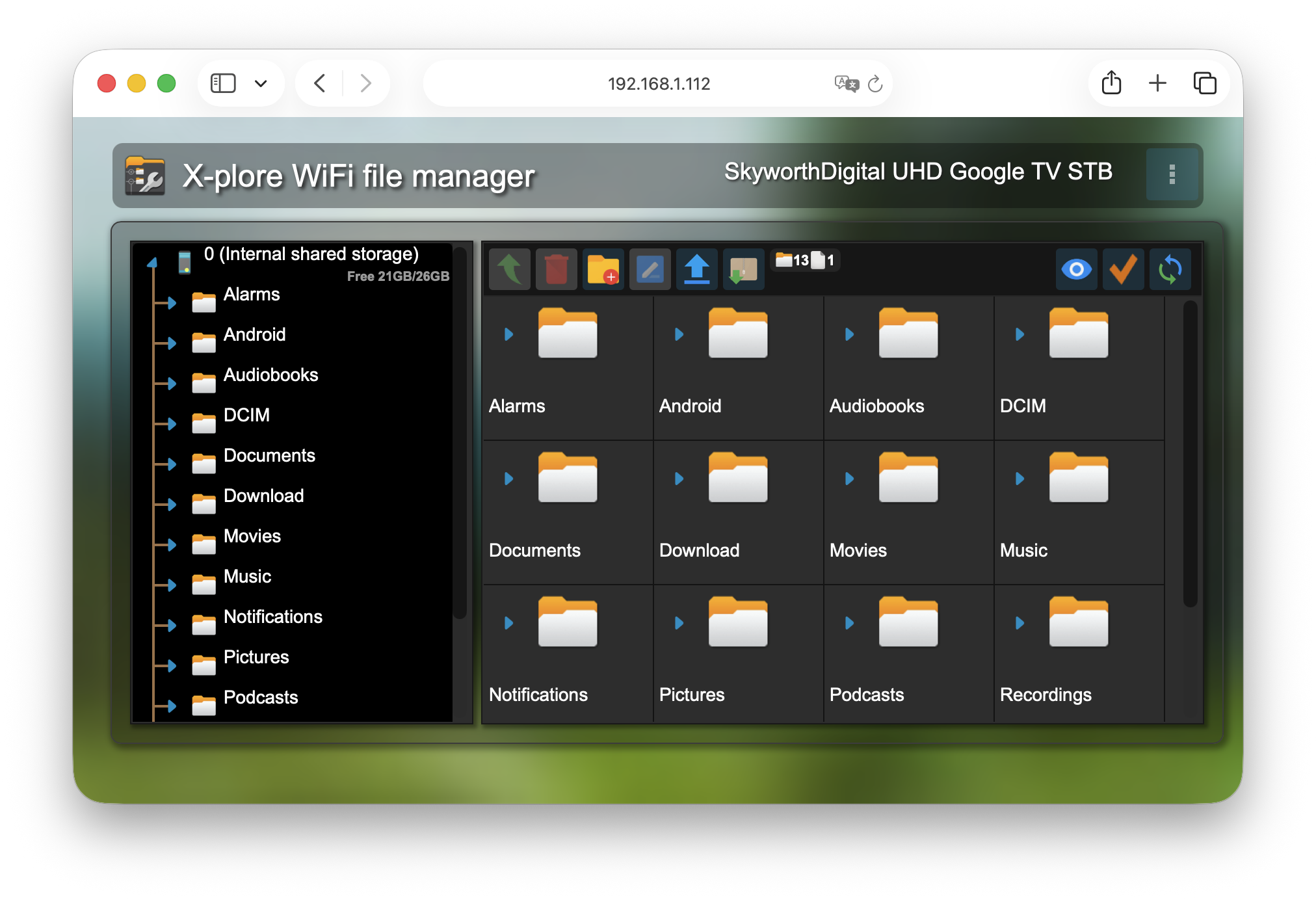
On your computer, open a web browser and go to the IP address shown in X-plore (e.g. http://192.168.1.112). You will see the file system of your TV device. Open any folder (e.g. Download) and click the blue arrow upload button in the top toolbar to upload the VimuInstaller.apk file.
X-plore: Allow Installation from Unknown Sources
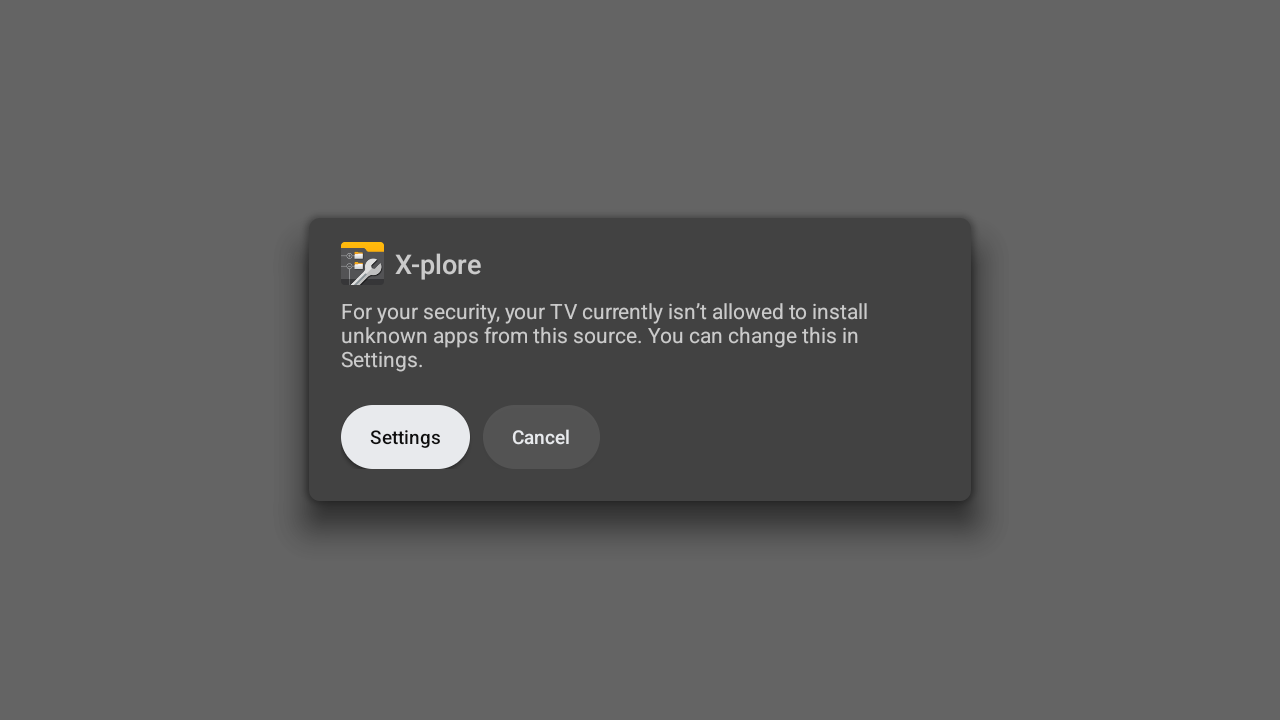
On your TV, navigate to the uploaded APK file in X-plore and open it. A security warning will appear. Press "Settings" and allow X-plore to install unknown apps, then go back.
X-plore: Install Vimu Installer
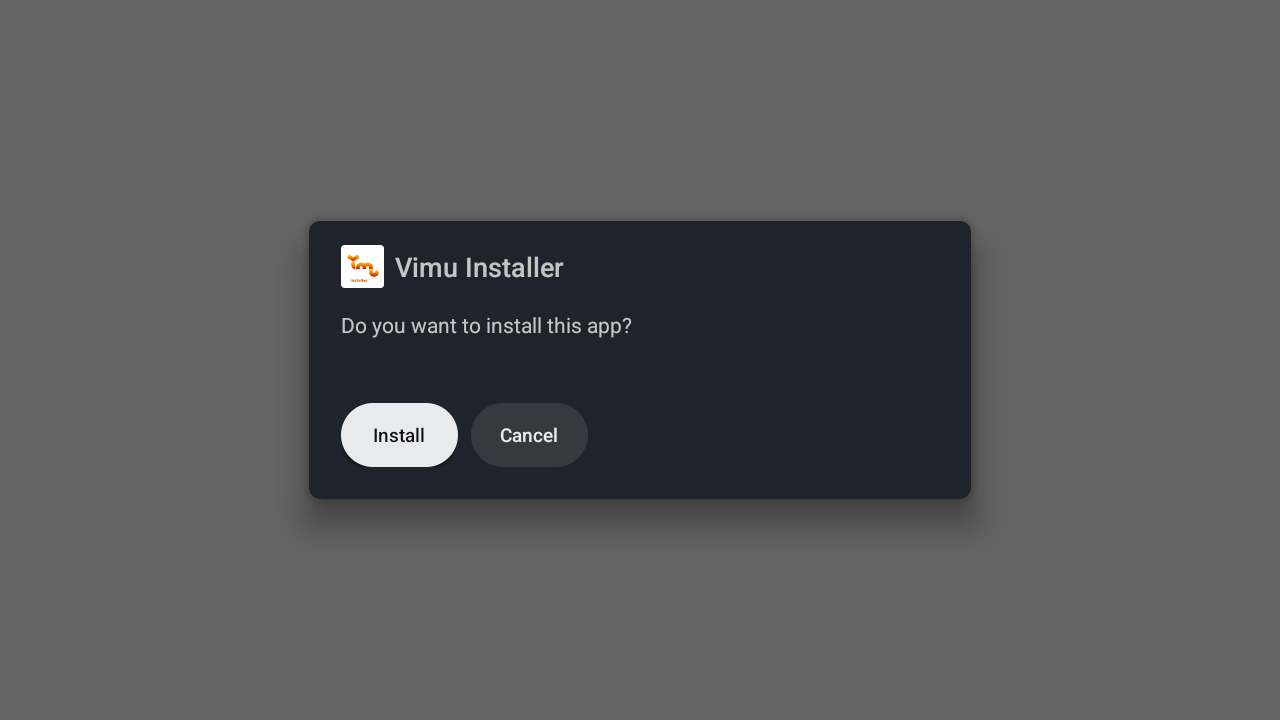
A confirmation dialog will appear asking "Do you want to install this app?". Press "Install". After installation, you can launch Vimu Installer from your TV's app list.
Part 2: Install Vimu Media Player and Activate License
Step 1: Start the Installation
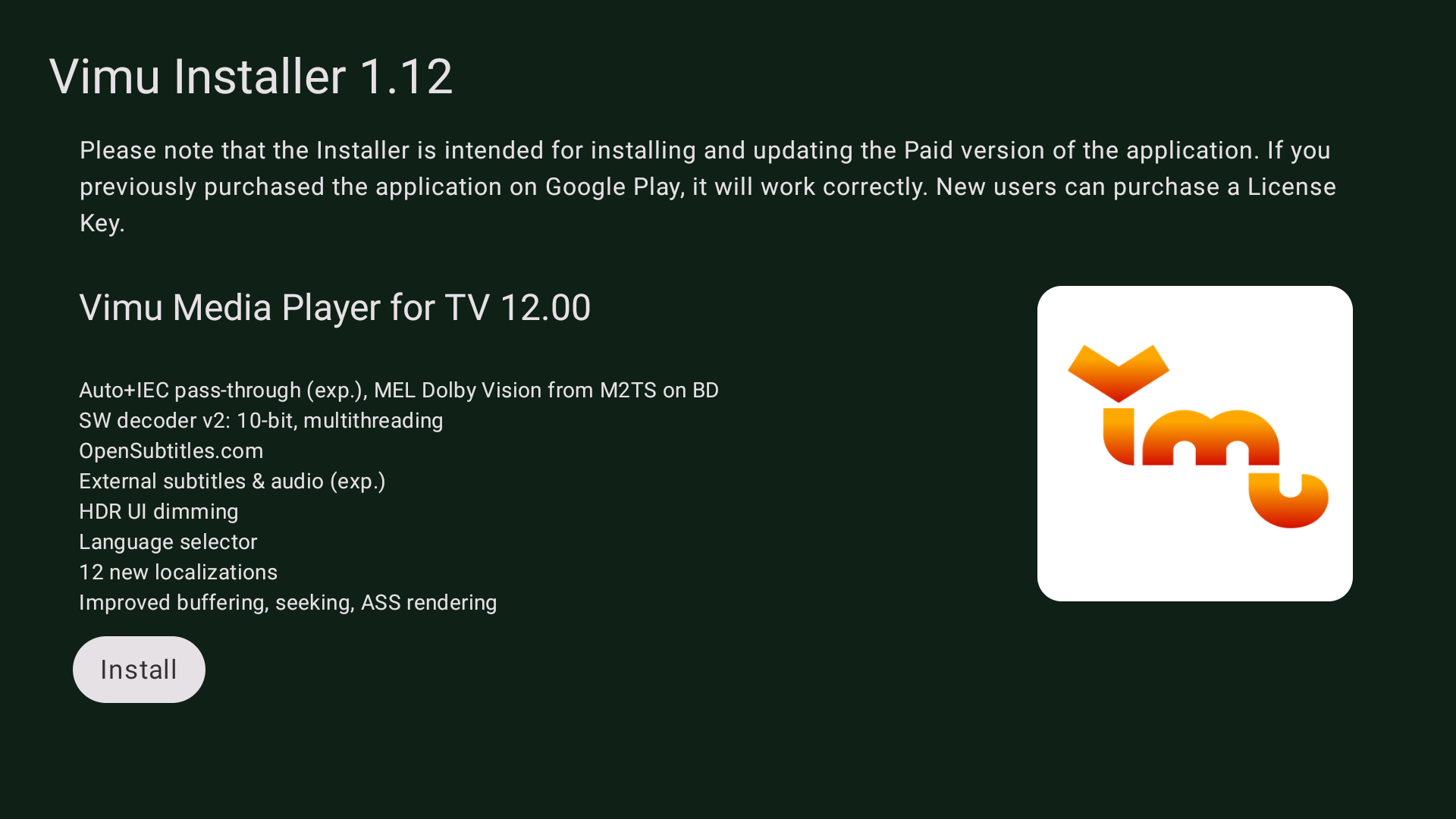
Open the Vimu Installer on your Android TV device. You will see the latest available version of Vimu Media Player along with a list of new features. Press the "Install" button to begin.
Step 2: Wait for the Download
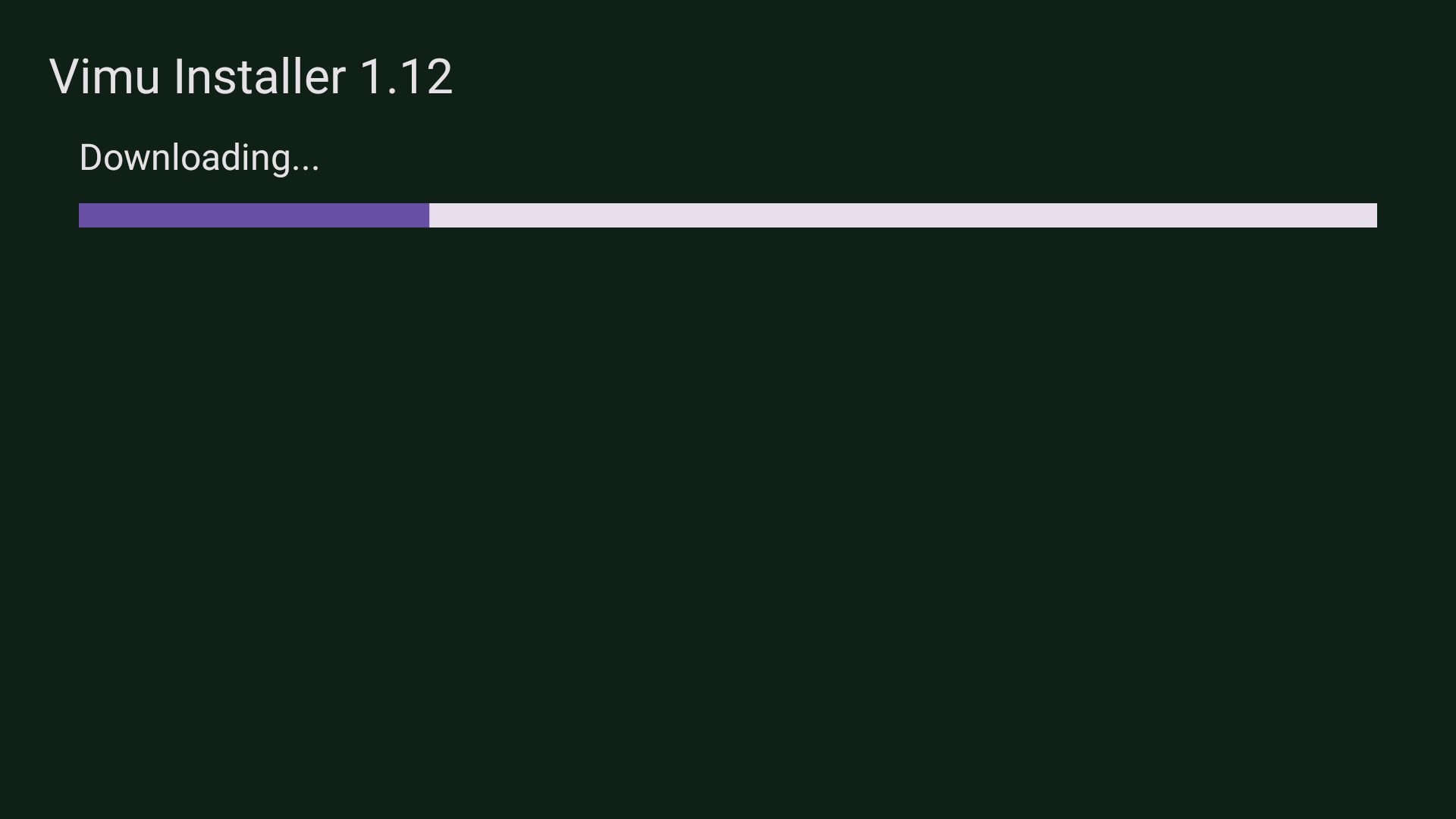
The installer will download the latest version of Vimu Media Player. Wait for the progress bar to complete.
Step 3: Allow Installation from Unknown Sources
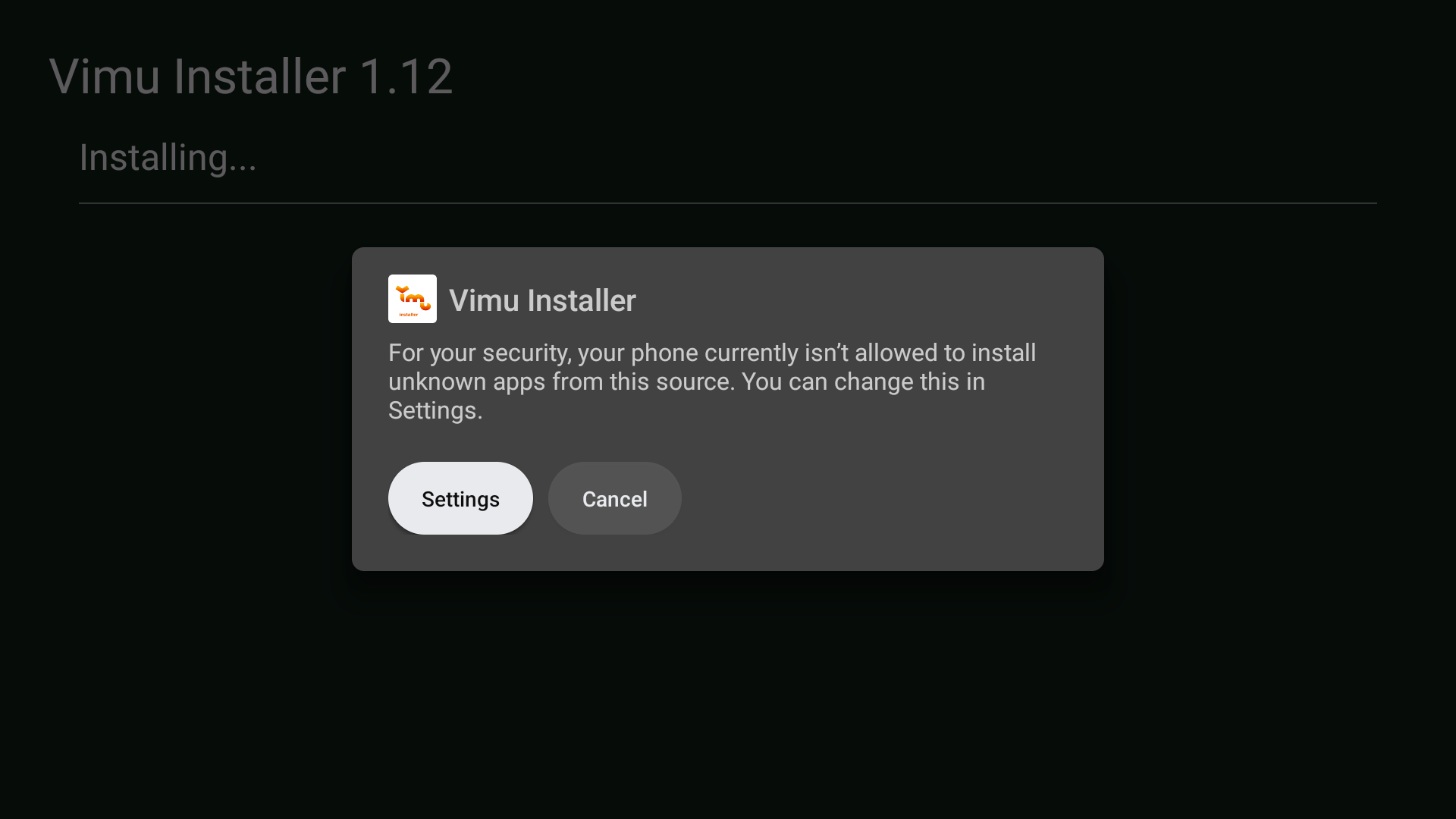
Your device may show a security warning saying it is not allowed to install apps from this source. This is normal. Press "Settings" to open the permission settings.
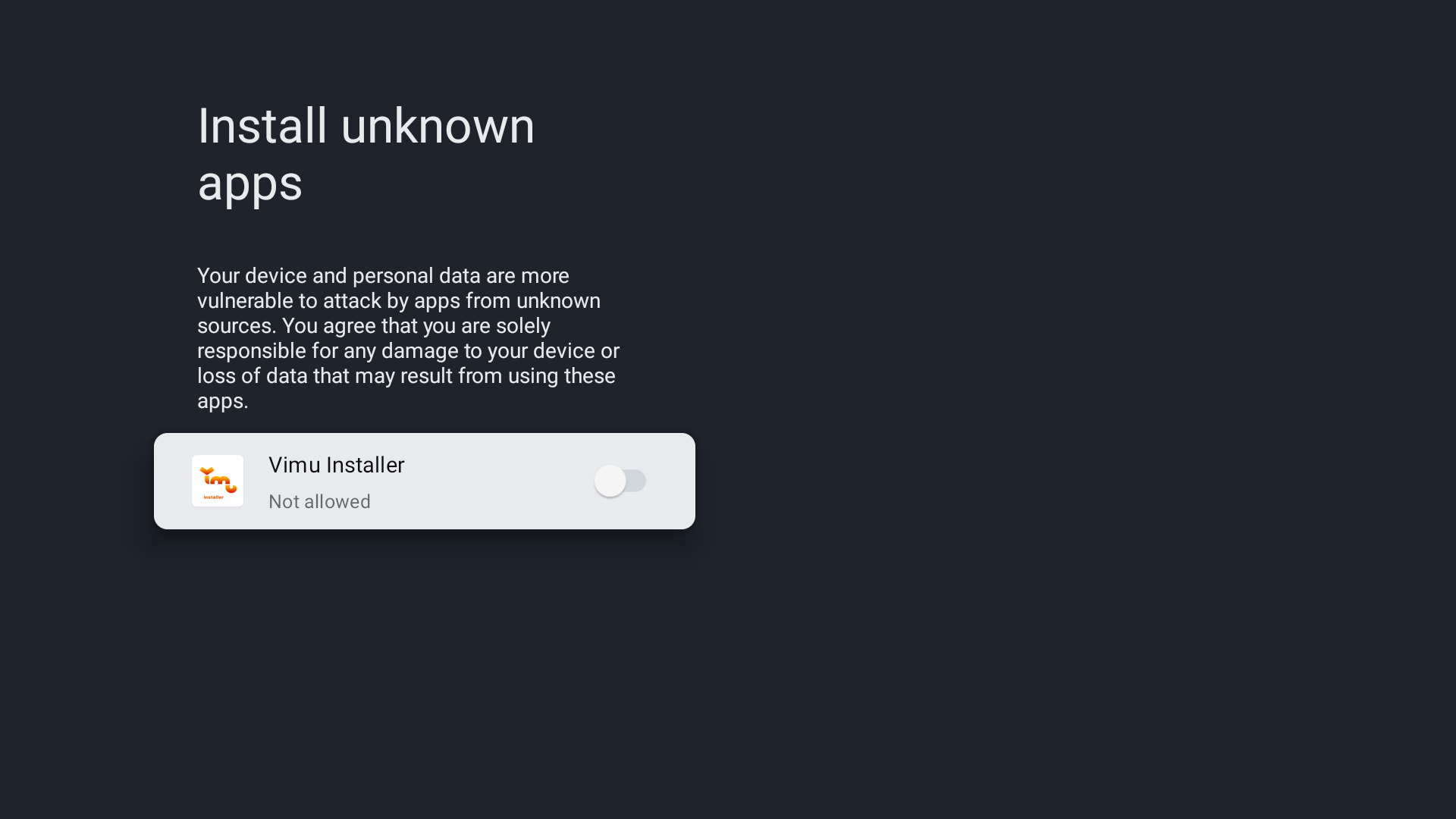
Step 4: Enable the Permission
In the "Install unknown apps" settings, find Vimu Installer and toggle it to "Allowed". Then press the Back button on your remote to return to the installer.
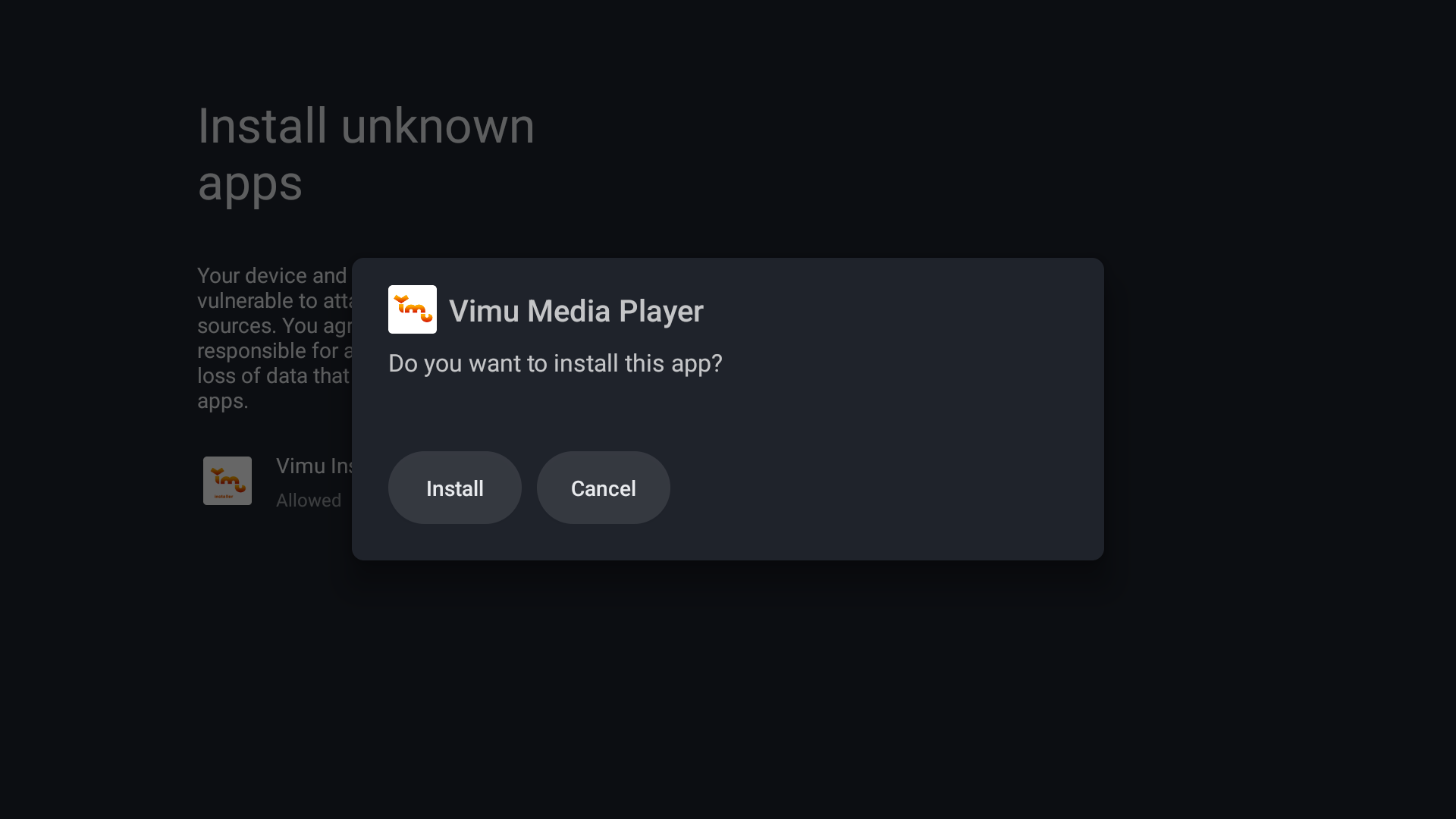
Step 5: Confirm the Installation
A confirmation dialog will appear asking "Do you want to install this app?". Press "Install" to proceed.
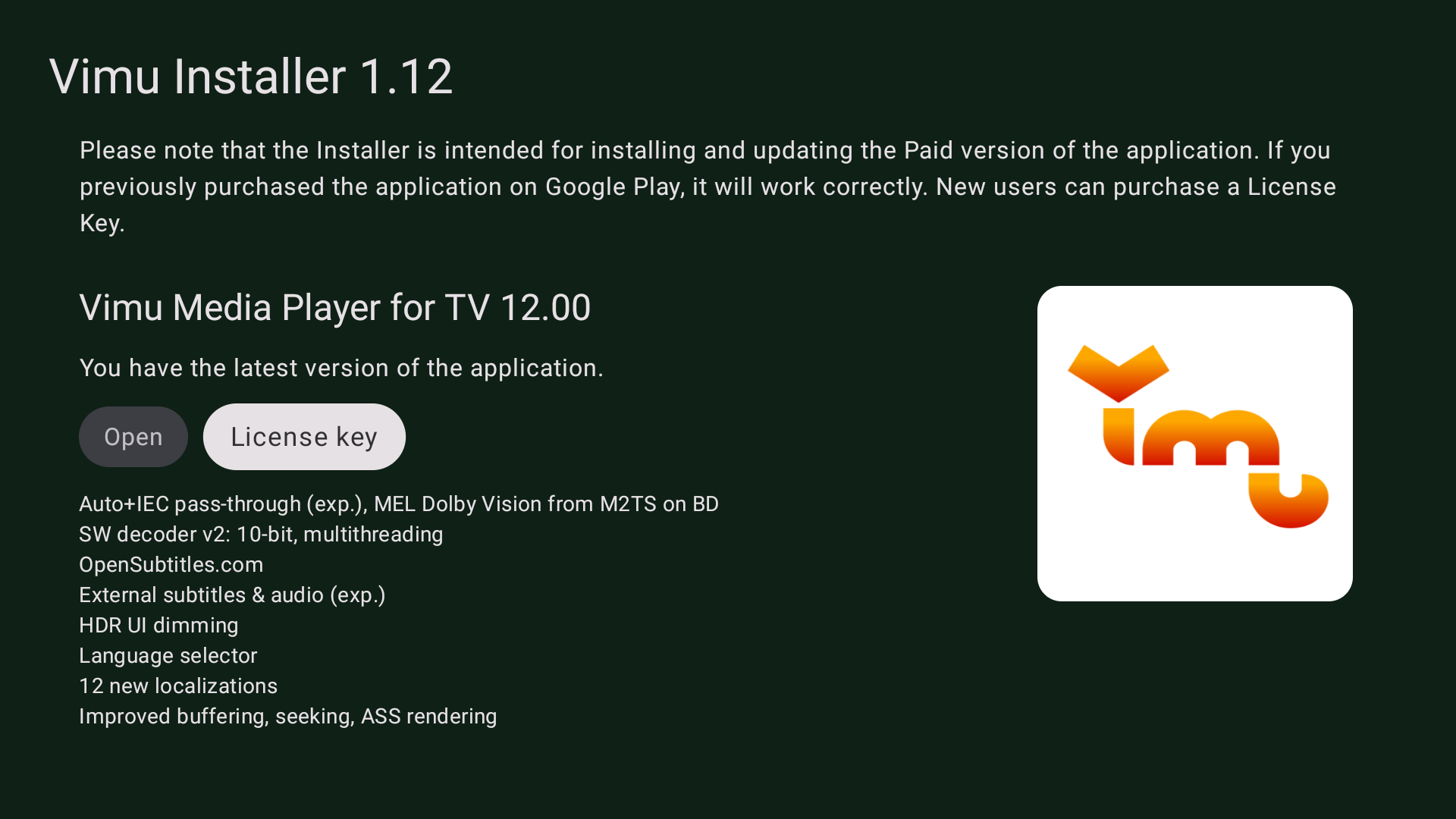
Step 6: Installation Complete
Once the installation is complete, you will see the message "You have the latest version of the application". You can press "Open" to launch the player, or press "License key" to activate the paid version.
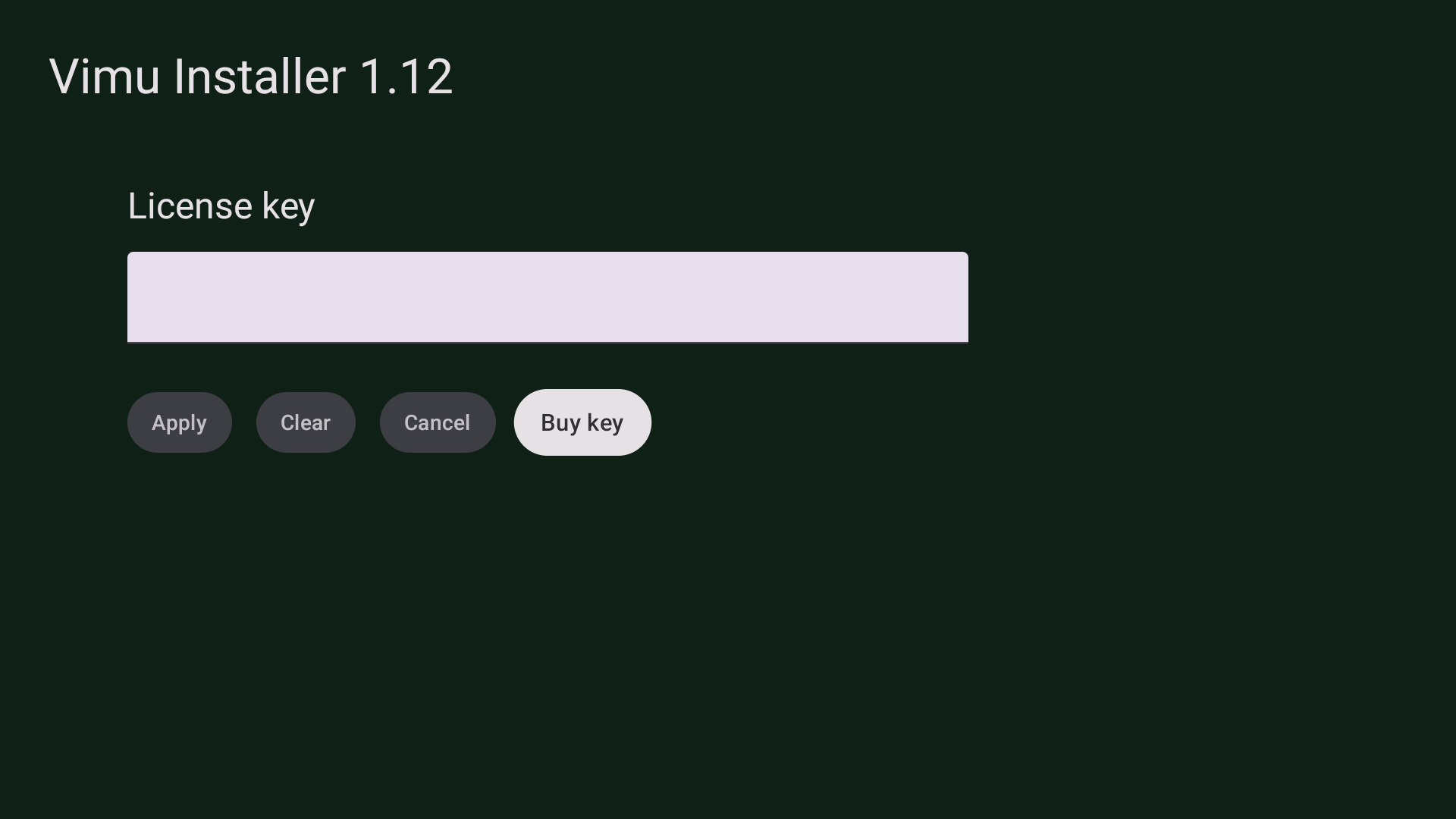
Step 7: Enter or Purchase a License Key
On the License Key screen, you can enter an existing key or purchase a new one. If you need a new key, press the "Buy key" button.
Step 8: Choose Telegram Stars Payment
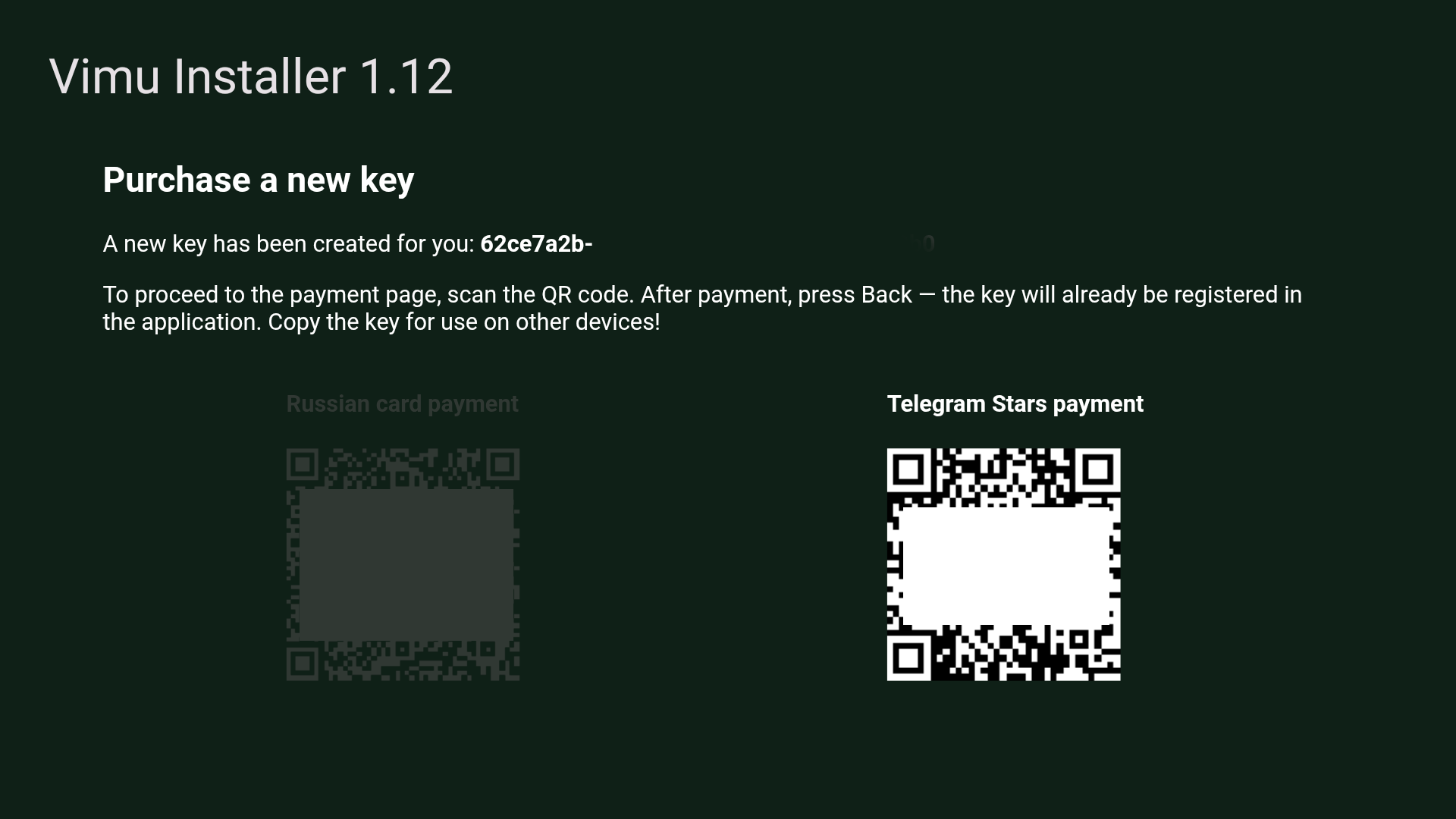
A new license key will be generated for you automatically. You will see two QR codes for payment. Scan the "Telegram Stars payment" QR code with your phone to open the payment bot in Telegram.
After payment, press Back on your remote — the key will already be registered in the application. Copy the key for use on other devices.
Step 9: Confirm Payment in Telegram
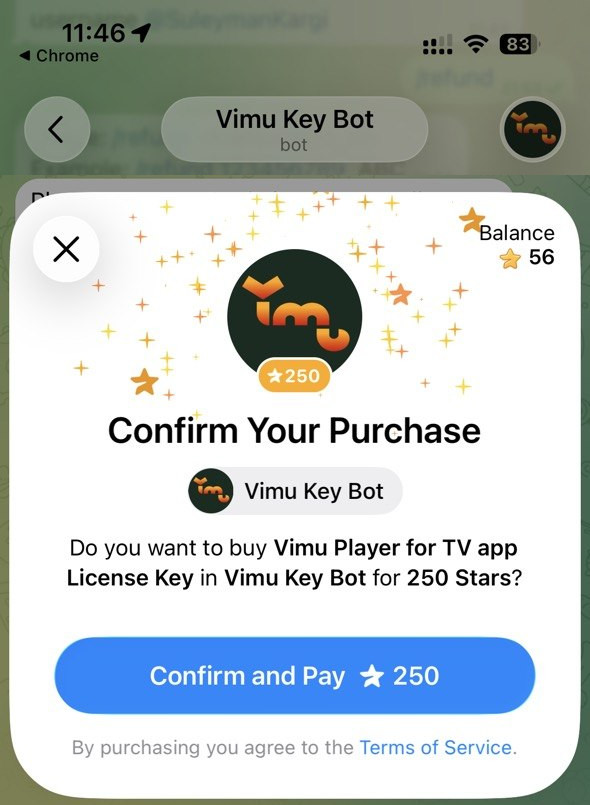
After scanning the QR code, the Vimu Key Bot will open in Telegram. A payment confirmation dialog will appear showing the price in Telegram Stars. Press "Confirm and Pay" to complete the purchase.
Make sure you have enough Telegram Stars in your balance. You can purchase Stars directly in Telegram if needed.
Need a refund? Send an email to vimu@gtvbox.net.